Schools and districts
Put the iPad on the board. Keep the file.
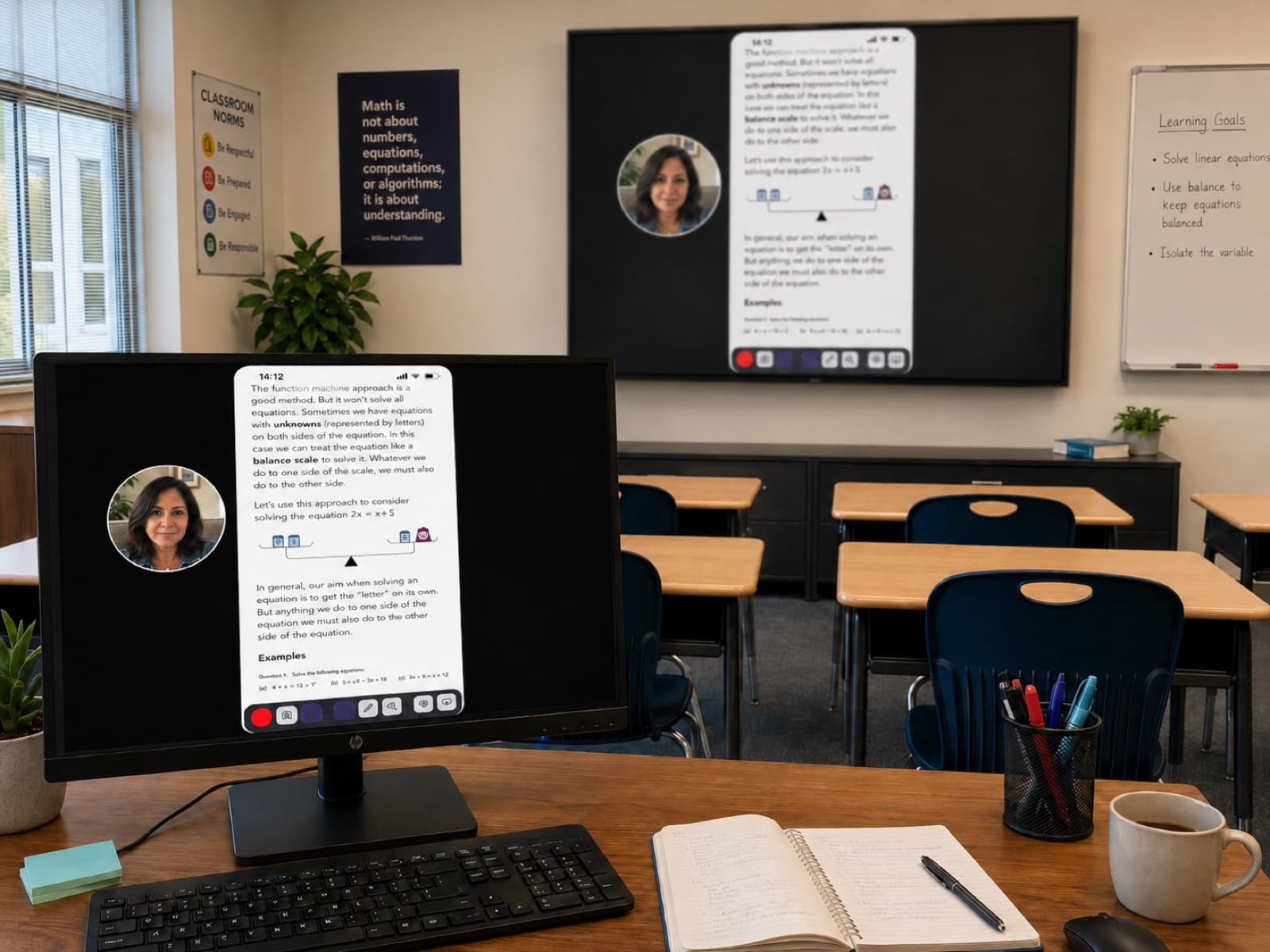
A teacher’s iPad, or a student’s, appears on the classroom display in one tap — no cable, and nothing installed on the device. Annotate as you teach, record the lesson, and the file stays on the teacher’s own computer.
District pilot
Ten Pro licences, free through the end of the school year.
Pro lets a teacher connect without limits. No recording limits, no mirroring limits, and every feature they need to make a great video — before or after the lesson — to share with students.
What you get
- Ten full Pro licences, every feature unlocked
- No watermark, no logo, and no time or daily limits
- Free until the end of the 2026–27 school year
- One coordinator decides who gets the seats
What we ask
- Twenty minutes at the end to tell us how it went
- Permission to name your school if it went well
- That is genuinely all — there is nothing to sign
No purchase order, no procurement, nothing to install centrally.
What it does in a classroom
Your device on the main display
A teacher's iPad or iPhone appears on the classroom display in one tap. No cable, no dongle, and nothing installed on the device itself.
Let a student share their work
When it is their turn, a student joins from their seat and the display switches to their device. Turn on a connection PIN and nobody reaches the board without you.
Annotate as you teach
Draw and spotlight on the projection while the lesson is running. Focus Mode shows the device full screen, so the class sees only that.
Capture it, hand it to the class
Record the lesson with audio and export an MP4 or a PowerPoint deck. Smart Capture zooms in on every tap as you go, so it stays legible without editing.
The workflow
How a lesson goes
- Mirror the iPad — yours or a student's — to the classroom display.
- Annotate live on the projection while you teach.
- Record the lesson with audio for anyone who missed it.
- Trim the start and end, and blur anything that should not be shared.
- Export it as an MP4 or a PowerPoint deck and share it however you normally do.
Where your data goes
Recording, editing and export happen entirely on the teacher’s computer. Files are written to their own disk, there is no render queue, no library syncing anywhere, and no account is needed to record or to mirror a device.
There is one exception, and it is worth stating plainly. The optional assistant features are used one request at a time, and only when someone chooses to: that request is processed and streamed straight back into the app. We keep a record of which action ran and when — not the image, and not the text. They can be left switched off, and everything described on this page works without them.
A recorded lesson is an ordinary file on the teacher’s machine. They hand it out through Google Classroom, Teams or wherever your school already shares things — systems you have already approved. There is no cloud storage here, no share links, and no way for a recording to reach us. We have written up what the app measures separately. It is keyed to a random device ID, which is linked to the teacher’s account only if they sign in, and it keeps the country and region it comes from, never anything finer. It never includes screen contents, file names or anything typed, and it can be switched off in Settings.
What you need
- Windows 10 or 11, or a Mac on macOS 13 or later (Apple Silicon)
- iPhone or iPad running iOS 15 or later
- Both on the same Wi-Fi network — this does not work across the internet
- Nothing to install on the iPad. AirPlay is already part of iOS
On a managed network
District Windows machines often block the discovery AirPlay needs, through Intune or a Defender policy, and the rules ScreenSolo adds when it installs can be overridden. Our guide lists the exact ports and includes a block your team can paste straight into a ticket.
AirPlay on a managed Windows PCTeaching on your own account?
Teachers and students get 30% off Pro. Sign in with a school Google Workspace or Microsoft 365 account and it is applied automatically — no .edu address required, and nothing to upload.
See pricingQuestions we get asked
Does anything about our students leave the school?
Recording, editing and export all happen on the teacher's computer. Nothing is uploaded, and no account is needed to record or to mirror a device. The optional assistant features are the single exception: when someone chooses to use one, that request is processed and streamed straight back, and we keep a record of which action ran and when, not the content. They can be left switched off, and nothing described here depends on them.
Will it install on a managed Windows PC?
Usually, but Intune or a Defender policy can block the discovery AirPlay needs. Our guide on AirPlay on a managed Windows PC lists the exact ports to allow and includes a block you can paste into a ticket.
Does it need administrator rights?
The installer does, because it writes to Program Files and adds its own firewall rules. Running it afterwards does not.
Can we try it before committing to anything?
Yes. The free tier runs on both platforms with no account, and Free never expires. It mirrors five minutes at a time, up to five times a day, and records up to five minutes a recording, five recordings a day — counted on each computer. That is enough to judge it but not enough to teach with, which is what the pilot is for.
Can students take turns on the display?
Yes. One iPhone or iPad is connected at a time, on every plan, so when it is a student's turn they join from their seat and the display switches to them. With a connection PIN switched on, nobody joins the display without you. On Free, each turn counts towards the five mirroring sessions a day on that computer; the pilot has no limit.
Can a student mirror without seeing the teacher's screen?
Yes. Mirroring only goes one way — from the device to the computer. A student sharing their work never sees anything on the teacher's machine.
Try it on one classroom display
Free on Mac and Windows, with nothing to install on the iPad. If it earns its place, ask us about the pilot.